
What Is Wireless CarPlay and How Does It Work? A Plain-English Guide
What Is Wireless CarPlay and How Does It Work? A Plain-English Guide
Introduction
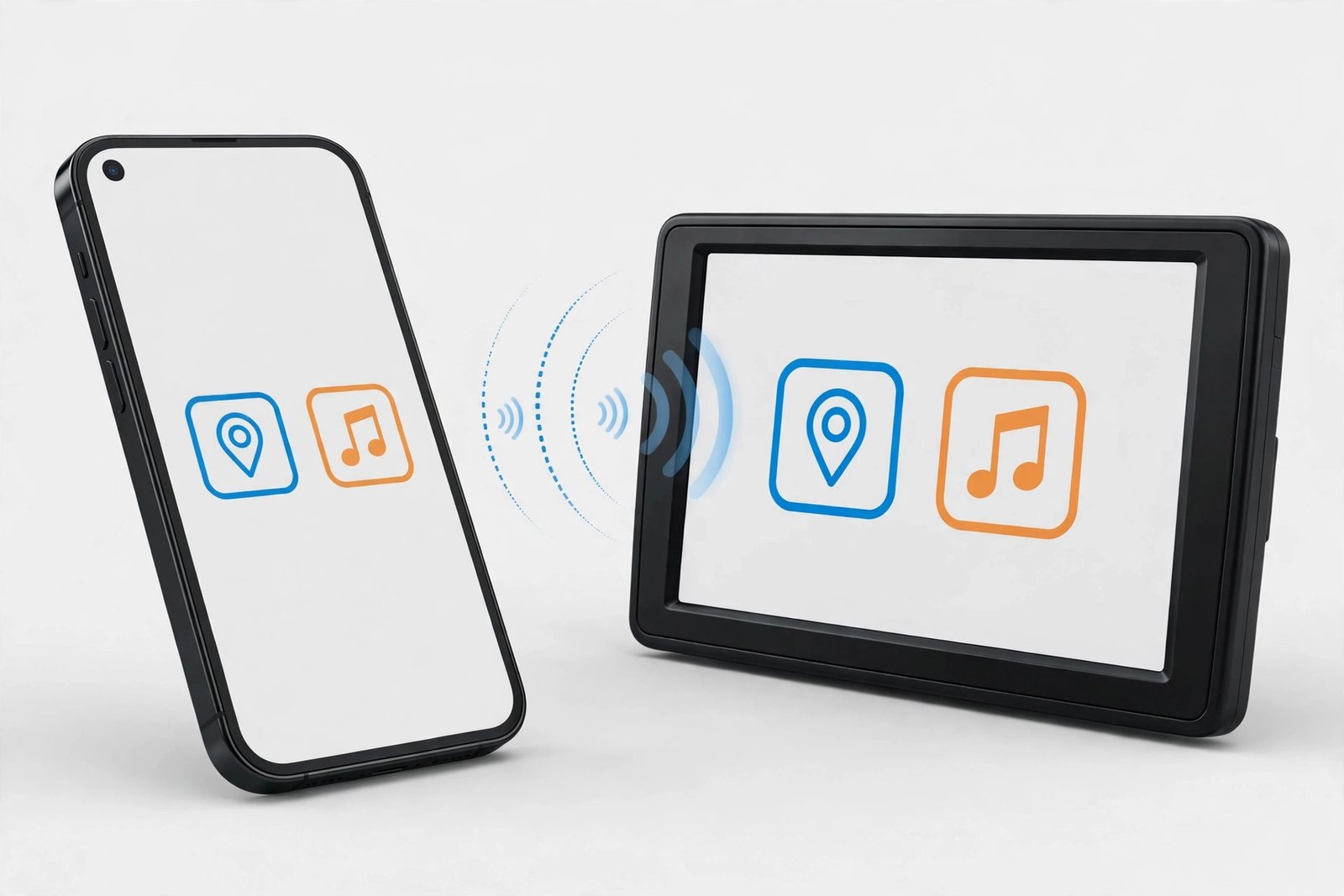
If you have ever wondered what is wireless CarPlay and how does it work, you are not alone. Wireless CarPlay is Apple’s way of putting your iPhone on your car’s screen without a cable. Instead of plugging your phone in every time you get in the car, your phone connects automatically over Wi-Fi and Bluetooth, and your car’s display shows a familiar, driver-friendly version of your phone: maps, music, messages, podcasts, and calls, all designed to be used safely while driving.
In plain English, wireless CarPlay turns your car screen into a safe extension of your iPhone. You still use your phone’s apps and data, but the layout is simplified, the buttons are larger, and voice control through Siri does much of the work so you can keep your eyes on the road. This guide explains how wireless CarPlay differs from wired CarPlay, how the connection actually works, which cars and phones support it, how to set it up, and what to do when it drops out or sounds odd. No jargon, no assumptions — just the practical facts you need before you buy a car, an adapter, or a mount.
What Is CarPlay, in Simple Terms?
CarPlay is Apple’s in-car system. When it is active, your car’s touchscreen (or, in some cars, a display controlled by a dial) shows a CarPlay home screen with large icons for Phone, Messages, Maps, Music, Podcasts, and other compatible apps. You can tap the screen, use steering-wheel controls, or simply talk to Siri. Your phone does the actual work — running the apps, fetching maps, and streaming music — while the car screen simply displays and controls it.
Think of it like a second screen for your phone, redesigned for driving. Notifications are simplified, text messages can be read aloud and dictated, and navigation gives clear turn-by-turn directions. The idea is to reduce distraction: instead of picking up your phone to check a map or change a song, you use the car’s larger screen and voice control, with far less fumbling.
Wired CarPlay vs Wireless CarPlay
Wired CarPlay connects your iPhone to your car with a USB cable, usually a Lightning or USB-C cable depending on your phone. You plug in, CarPlay starts, and your phone charges at the same time. It is simple, reliable, and widely supported, which is why many older CarPlay cars only offer wired connections.
Wireless CarPlay does the same job without the cable. Once you have paired your phone, CarPlay starts automatically when you start the car — often before you have even fastened your seatbelt. Your phone stays in your pocket, bag, or on a charging mount, and you never have to remember a cable. The trade-off is that wireless CarPlay uses more phone battery, because it keeps a Wi-Fi connection running, and it can occasionally drop out or lag where wired CarPlay would stay rock solid. Many drivers solve the battery issue with a wireless charging pad or a good car mount and charger, such as the options in our guide to best MagSafe car mounts.
How Does Wireless CarPlay Actually Connect?
Wireless CarPlay uses two wireless technologies together: Bluetooth and Wi-Fi. That often confuses people, because you might expect it to use only one. Here is the simple version of what happens each time you start your car.
First, your car and phone find each other over Bluetooth. Bluetooth acts like a handshake — a low-power way for the car to say, “I recognise this phone, let’s connect.” Once that handshake succeeds, the car and phone switch to a direct Wi-Fi connection for the heavy work: sending the screen display, maps, music, and voice data back and forth. This direct Wi-Fi link is private between your phone and your car; it does not need your home Wi-Fi or a mobile hotspot, and it does not use your mobile data for the connection itself (although maps and streaming still use data as normal).
Because Wi-Fi carries far more data than Bluetooth, the display stays smooth and responsive, and music and maps update quickly. Bluetooth alone would be too slow for a live screen, and Wi-Fi alone would be slower to discover and pair. Using both gives you fast discovery plus a fast, high-quality connection.
Which Cars and Phones Support Wireless CarPlay?
Wireless CarPlay needs support from both your car and your phone. On the phone side, you need an iPhone running a recent version of iOS — generally iPhone 5 or later can run CarPlay in some form, but wireless CarPlay works best on newer iPhones with current iOS. Check Apple’s current compatibility information and your phone’s software update screen before assuming support.
On the car side, wireless CarPlay is built into many newer cars, but not all CarPlay cars support it wirelessly. Some cars offer wired CarPlay only, some offer both, and availability can vary by model year, trim level, and region, even within the same car brand. If you are buying a car, ask specifically for “wireless CarPlay” rather than just “CarPlay,” and test it with your own phone during a test drive if you can.
If your car only has wired CarPlay, you are not necessarily stuck. Wireless CarPlay adapters plug into the car’s USB port and pretend to be a wired phone, then connect wirelessly to your real phone. They can be a good upgrade for older cars, but quality varies, so read recent reviews, check compatibility with your car model, and expect occasional quirks that a factory wireless system would not have.
How to Set Up Wireless CarPlay
Setup is usually straightforward, and you typically only do it once. The exact steps vary slightly by car, but the general process looks like this:
- Make sure Bluetooth and Wi-Fi are switched on on your iPhone, and that your car is parked with the ignition on.
- On your car’s screen, go to the phone, CarPlay, or connectivity menu and look for an option to add or pair a phone for wireless CarPlay.
- On your iPhone, go to Settings, then General, then CarPlay, and look for your car in the available cars list. Alternatively, your car may prompt you to pair via Bluetooth first.
- Confirm the pairing code on both screens if one appears, and allow CarPlay when your phone asks.
- Once paired, test it: turn the car off and on again, and check that CarPlay starts automatically without touching your phone.
If your car asks whether to enable CarPlay automatically or only when you choose it, enabling automatic connection gives the true wireless experience. You can also manage paired cars, rearrange CarPlay apps, and change settings later in your iPhone’s CarPlay settings. If you use an adapter, follow the adapter’s own setup steps instead, as they often involve plugging in the adapter, pairing over Bluetooth, and waiting for a first-time firmware-style setup to complete.
What Can You Do With Wireless CarPlay?
Once connected, wireless CarPlay gives you safe access to the apps you use most while driving. Navigation apps show maps with live traffic and turn-by-turn directions. Music and podcast apps let you browse playlists and episodes with large, simple controls. Phone and Messages let you make hands-free calls and hear messages read aloud, then dictate replies with Siri without typing.
Many third-party apps also support CarPlay, including popular navigation, music, audiobook, and messaging apps, though not every iPhone app appears on the car screen. Apple limits which app types can appear, to keep driving safe and simple. You can also use Siri for much more: ask for directions, send a message, play a specific song, check the weather ahead, or make a call, all without touching the screen.
Common Limits and Drawbacks
Battery use
Wireless CarPlay uses more battery than wired CarPlay because your phone maintains a Wi-Fi connection and runs maps and streaming. On short trips this is rarely a problem, but on long drives your phone can drain noticeably faster. A car charger, a charging mount, or a wireless charging pad solves this for most drivers, and it is worth planning power before a long journey.
Dropouts and delays
Occasionally, wireless CarPlay may disconnect, freeze, or take a few seconds longer to start than wired CarPlay. This can happen after a software update, in areas with heavy wireless interference, or if your phone’s Bluetooth or Wi-Fi settings have changed. Most dropouts resolve by restarting the car, toggling Bluetooth and Wi-Fi, or re-pairing the phone. If dropouts happen constantly, check for car software updates and iOS updates, as fixes often arrive that way.
Audio quality
For most listeners, wireless CarPlay audio sounds excellent — effectively the same as wired for music and podcasts in everyday driving, with road noise masking any tiny differences. Audiophiles may notice subtle differences in some setups, and a wired connection can feel slightly more immediate. If audio quality is your top priority and your car supports both, try wired and wireless back to back and choose the one you prefer.
Not every feature works everywhere
Some CarPlay features depend on your car, region, or app. For example, dashboard integration, multi-screen displays, and certain Siri features vary by car model and iOS version. Check what your specific car supports rather than assuming every feature shown in Apple’s marketing will appear in your vehicle.
Troubleshooting Wireless CarPlay
If wireless CarPlay stops working, work through these steps in order, testing after each one. First, restart your iPhone and restart your car system — many glitches clear with a simple restart. Next, check that Bluetooth and Wi-Fi are both on, that your phone is not in a restrictive mode that blocks connections, and that CarPlay is not restricted in your phone’s Screen Time or privacy settings.
If that does not help, forget the car in your iPhone’s CarPlay settings and remove the phone from your car’s paired devices, then pair again from scratch. Also check for iOS updates and car software updates, as compatibility fixes are common. For adapter users, check the adapter maker’s app or support pages for firmware updates and car-specific advice. If only one app misbehaves, try removing and reinstalling that app, or check whether it still supports CarPlay. As a last resort, a wired connection can confirm whether the problem is wireless-specific or a broader CarPlay issue.
Is Wireless CarPlay Worth It?
For most drivers, wireless CarPlay is worth it for convenience alone. Getting in the car and having maps and music ready without a cable, every single time, removes a small daily friction that adds up over years of driving. It is especially valuable if you make many short trips, share a car with other iPhone users, or hate cables cluttering the centre console.
It is less essential if you almost always drive long distances with your phone charging anyway, if you prefer the rock-solid reliability of a cable, or if your car already has excellent built-in navigation and media. In that case, wired CarPlay — or even a good phone mount and charger — may serve you just as well. The best choice depends on your driving pattern, not on which technology sounds newer.
Conclusion
Wireless CarPlay is simply CarPlay without the cable: your iPhone connects to your car automatically over Bluetooth and Wi-Fi, and your car’s screen becomes a safe, simplified version of your phone for maps, music, messages, and calls. It trades a little battery life and occasional wireless quirks for everyday convenience, and for many drivers that trade is well worth it. Check that your car and phone support it, set it up once, plan for charging on long trips, and enjoy a cleaner, calmer drive.
Frequently Asked Questions
Does wireless CarPlay need internet or mobile data?
The wireless connection itself between your phone and car does not need home Wi-Fi or a hotspot, but apps like maps and music streaming still use your phone’s mobile data as normal. Offline maps, if your navigation app supports them, can reduce data use on long trips.
Does wireless CarPlay drain my phone battery faster?
Yes, wireless CarPlay generally uses more battery than wired CarPlay because it maintains a Wi-Fi connection. On short trips the difference is small, but on long drives you should use a car charger or charging mount to keep your phone topped up.
Can I add wireless CarPlay to a car that only has wired CarPlay?
Often, yes, with a wireless CarPlay adapter that plugs into your car’s USB port. Adapters work well for many cars, but compatibility and reliability vary, so check reviews for your specific car model before buying, and expect occasional quirks compared with factory wireless CarPlay.
Why does my wireless CarPlay keep disconnecting?
Common causes include software bugs, Bluetooth or Wi-Fi interference, outdated iOS or car software, and pairing glitches. Try restarting both phone and car, re-pairing from scratch, and updating software. If problems persist, test a wired connection to see whether the issue is wireless-specific.
Is wireless CarPlay better than wired CarPlay?
Wireless CarPlay is more convenient because it connects automatically without a cable, while wired CarPlay is slightly more reliable and charges your phone at the same time. Neither is universally better — choose wireless for convenience and short trips, and wired for maximum reliability and charging on long drives.
Do I need a special cable for wireless CarPlay?
No cable is needed for day-to-day wireless CarPlay use, which is the whole point. You may still want a charging cable or wireless charger for long trips to offset the extra battery use, but CarPlay itself runs entirely wirelessly once paired.