
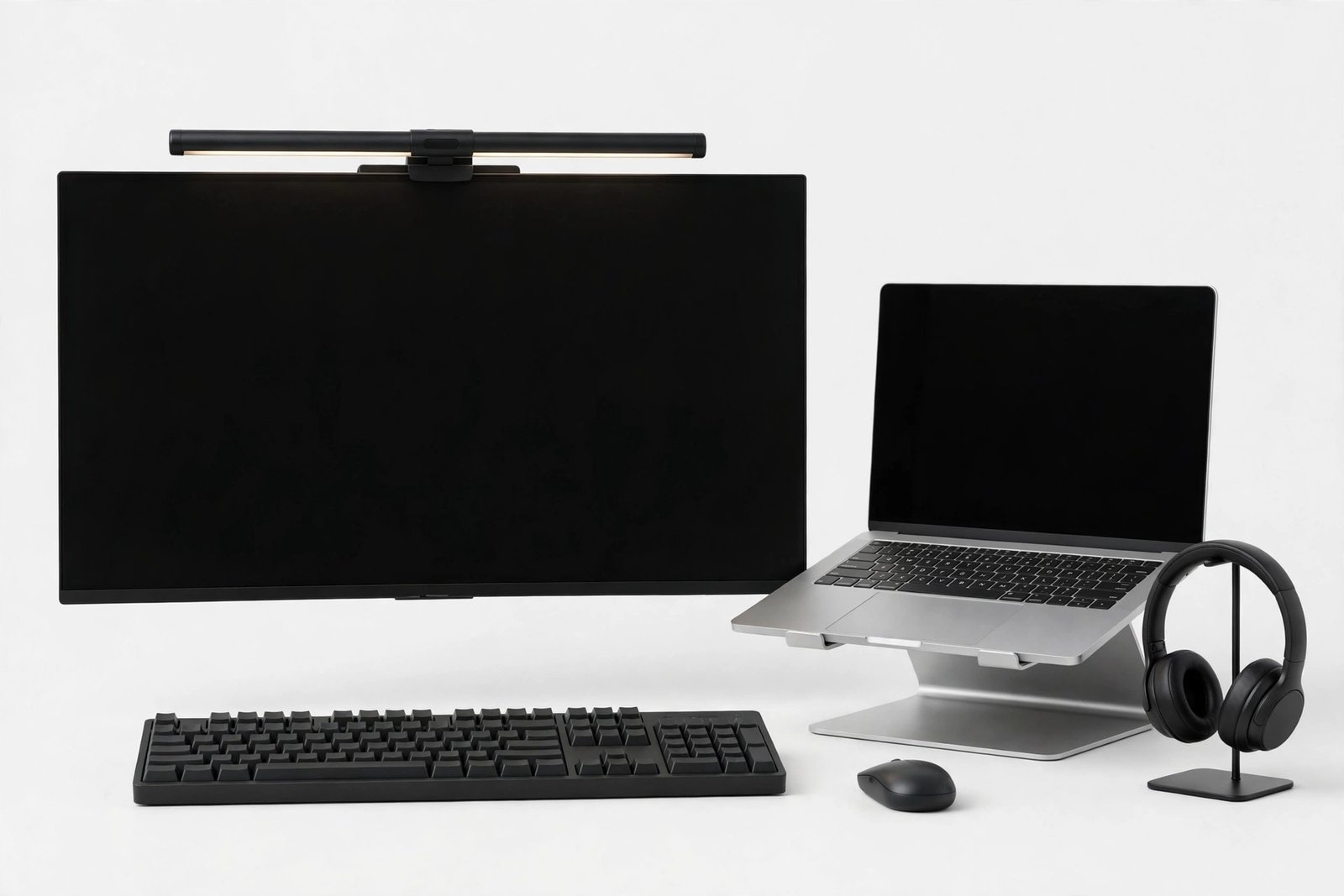
Best Desk Gadgets for Programmers Who Work From Home: 12 Productivity Picks for a Better Coding Setup
As an Amazon Associate, we earn from qualifying purchases made through links on this page, at no extra cost to you. This helps support our work and keeps our guides free to read.
A quick note on prices: prices change often, so we never quote a fixed price here. Please check the latest price on Amazon before you buy, using the yellow buttons in this guide. The product pictures in this article are original illustrations created for this guide, not manufacturer photos.
Introduction
If you spend your working day writing code from a spare room, a kitchen table, or a corner of your bedroom, you already know that the best desk gadgets for programmers who work from home are not luxury extras — they are the difference between finishing the day sharp and finishing it with a headache, an aching wrist, and a neck that has been bent over a laptop screen for eight hours. A programmer’s desk takes more punishment than almost any other home workspace: long, unbroken focus sessions, two or three screens, video calls scattered through the day, and a tangle of chargers, dongles and drives that grows every month.
This guide rounds up the twelve upgrades that make the biggest difference to a real programmer desk setup: better light for late sessions, a keyboard and mouse your hands can live with, stands and arms that put screens at eye level, a single-cable dock, and the unglamorous cable and power fixes. Every pick is a widely available type of gadget, chosen because it solves a problem developers actually have.
We have also kept budgets in mind. A great coding desk setup does not have to be bought all at once, and several of the most satisfying improvements — a desk mat, a footrest, a cable kit — cost less than a team lunch. We flag which picks to buy first if you are upgrading in stages, and which are worth stretching for. Think of these as work from home desk essentials first and nice-to-haves second: comfort and posture gear leads the list, and the cosmetic extras come last.
Whether you are a backend developer living in a terminal, a frontend developer juggling design calls, or a data scientist whose laptop fans spin up every time a notebook runs, there is a pick below for your routine. Read the pros and cons, and build the setup that lets you stay in flow longer, with fewer aches at the end of the day.
How We Chose
We chose these twelve gadgets by thinking about a programmer’s day in order: the morning plug-in, the first deep-work block, the stand-ups in between, and the late session when the light fades. A gadget earned its place if it removes a repeated annoyance, improves posture or comfort during long sessions, or makes a multi-device setup simpler to run. We favoured gear that works with the laptops developers already own, connects over standard USB-C where possible, and does not depend on one brand’s ecosystem.
We also weighed adjustability heavily, because no two coders sit the same way. Stands that tilt, arms that float, and keyboards that let your hands rest in a neutral position all scored well, while fixed, one-height accessories scored lower. Finally, we mixed the list across the whole desk: screens and light first, then input devices, then the dock, power and cable layer, and finally the comfort extras — footrest, mat, headphone stand. If you are building out broader home office gadgets for developers, this list is the desk-level core to start from.
Quick List
- Monitor Light Bar — glare-free desk light that takes up no desk space.
- Ergonomic Mechanical Keyboard — tactile typing with a kinder hand position.
- Adjustable Laptop Stand — raise a laptop screen to eye level in seconds.
- USB-C Docking Station — one cable for monitors, power and peripherals.
- Wireless Ergonomic Mouse — a vertical grip that eases wrist strain.
- Gas Spring Monitor Arm — float your monitor exactly where your neck wants it.
- Desk Cable Management Kit — tray, clips and sleeves to end the cable jungle.
- Extra Large Desk Mat — one smooth surface for keyboard, mouse and notebook.
- HD Webcam with Microphone — look and sound clear on stand-ups and reviews.
- Adjustable Ergonomic Footrest — supported feet for better sitting posture.
- Surge Protector Power Strip with USB Ports — tidy, protected power for the whole setup.
- Desk Headphone Stand — a proper home for the headphones you live in.
1. Monitor Light Bar
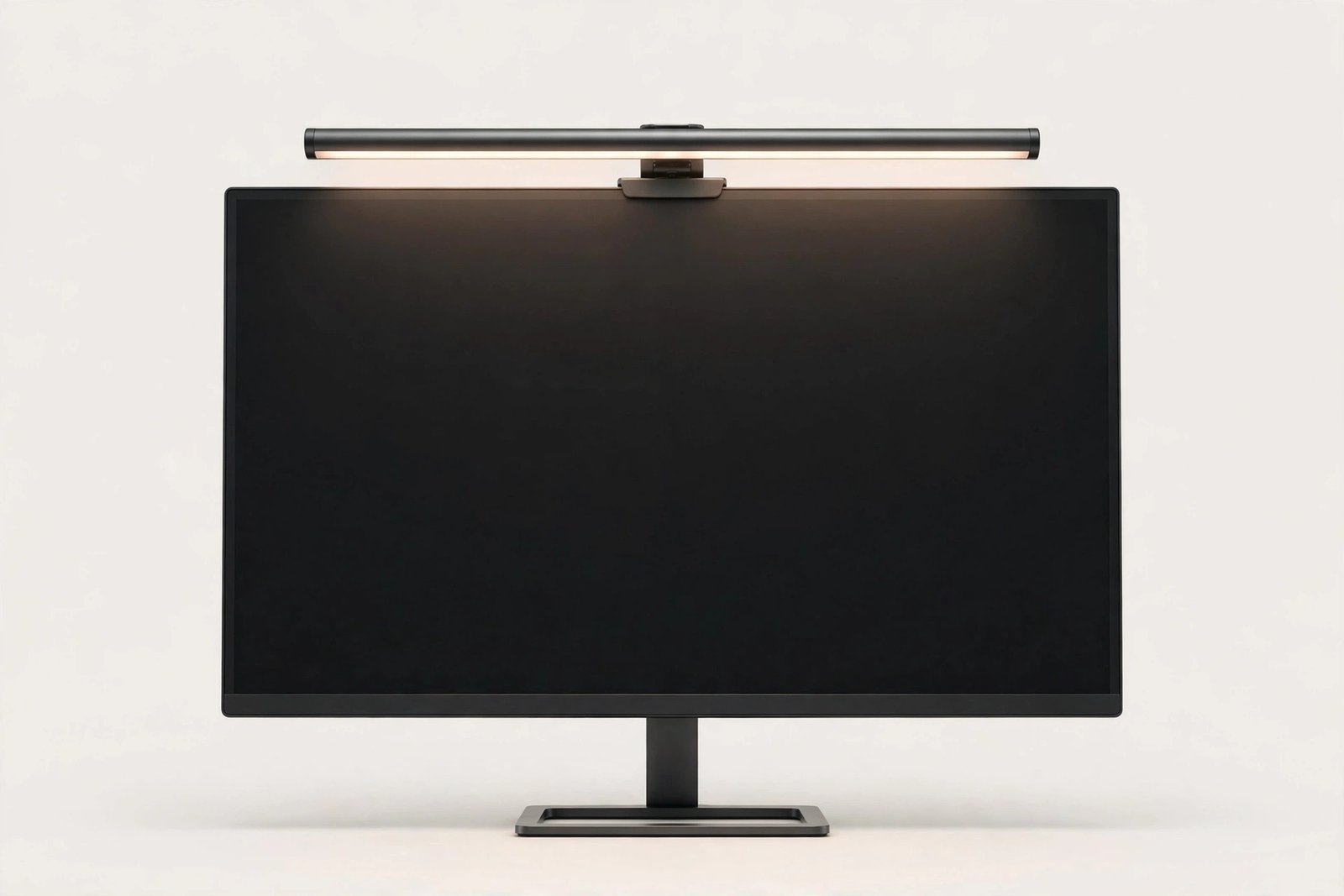
A Monitor Light Bar sits on top of your screen and throws light down onto your desk — and only your desk. Unlike a normal desk lamp, it is designed so none of that light hits the display itself, which means no glare and no reflections washing out your editor’s dark theme. For programmers who work early, late, or in a dim spare room, that focused pool of light is the single easiest comfort upgrade on this list, and the first coding desk accessory most developers wish they had bought sooner.
In daily use, the bar frees the corner a lamp would have taken, runs from a USB port on the monitor or dock, and offers adjustable brightness and colour temperature — cooler for morning focus, warmer for an evening session. Check the clamp before you buy: most bars grip the top bezel and suit flat monitors well, while very curved or ultra-thin displays may need a specific mount.
Pros
- 👍 Lights the desk without glare or reflections on the screen.
- 👍 Takes up no desk space at all.
- 👍 Adjustable brightness and colour temperature for day and night work.
- 👍 Runs from a USB port — no extra plug needed.
Cons
- 👎 Clamp fit varies on curved or very thin monitors.
- 👎 Lights a smaller area than a full desk lamp.
- 👎 Wireless remote models need batteries or charging.
Best for: programmers who code in dim rooms or after dark, and anyone with a small desk that cannot spare room for a lamp.
Check Price And User Reviews on Amazon
2. Ergonomic Mechanical Keyboard

An Ergonomic Mechanical Keyboard is the gadget your hands will thank you for most, because typing is the physical act you repeat more than any other all day. Mechanical switches give a clear, tactile confirmation of each keystroke, so you type with less force and fewer missed keys, while an ergonomic shape — a gentle split, a tented middle, or a sculpted profile with a proper wrist rest — keeps your hands in a more neutral position than a flat laptop keyboard ever can. Among all the coding desk accessories in this guide, this is the one that changes how work feels, hour after hour.
Choosing one comes down to feel and layout. Switches range from quiet linear types, which suit shared homes and open microphones, to clicky tactile ones that are satisfying but loud on calls. Hot-swappable models let you change switches later without buying a new board. A fully split keyboard has a learning curve of a week or two; a sculpted one-piece board feels familiar on day one. Either way, pair it with the wrist rest and keep your elbows at desk height, and long refactoring sessions stop ending with tired fingers.
Pros
- 👍 Tactile switches mean lighter, more accurate typing.
- 👍 Ergonomic shapes and wrist rests reduce hand and wrist strain.
- 👍 Built to last far longer than a membrane keyboard.
- 👍 Hot-swappable models let you change the feel later.
Cons
- 👎 Split layouts take a week or two to get used to.
- 👎 Clicky switches are too loud for calls and shared rooms.
- 👎 Costs more than a basic office keyboard.
Best for: developers who type all day, anyone with early wrist or finger fatigue, and touch typists who want a keyboard that keeps up.
Check Price And User Reviews on Amazon
3. Adjustable Laptop Stand

An Adjustable Laptop Stand fixes the most common posture problem in home coding: the laptop screen sits far too low, so you spend the day looking down, rounding your shoulders and compressing your neck. A stand lifts the screen to eye level and — used with an external keyboard and mouse — turns a laptop into a proper workstation. It is one of the cheapest work from home desk essentials there is, and the difference is noticeable on day one: you sit taller and stop hunching over the keyboard by mid-afternoon.
Look for several height or angle settings rather than a single fixed slope, because the right height depends on your chair and desk. Aluminium models feel rock solid and help cooling, while folding designs suit developers who work from a dining table that has to be cleared at night. Check the weight rating against your machine, and choose rubber pads and a front lip so the laptop never slides. In a dual-screen setup, a stand also lines the laptop screen up neatly beside your main monitor.
Pros
- 👍 Raises the screen to eye level for much better posture.
- 👍 Open design helps the laptop run cooler.
- 👍 Adjustable and folding models suit any desk or room.
- 👍 One of the cheapest big comfort wins in this guide.
Cons
- 👎 You must use an external keyboard and mouse with it.
- 👎 Cheap stands can wobble with heavy laptops.
- 👎 Fixed-height models may not match your chair height.
Best for: laptop-based programmers, dual-screen setups, and anyone whose neck aches by the end of the day.
Check Price And User Reviews on Amazon
4. USB-C Docking Station

A USB-C Docking Station is the hub that turns a laptop into a desktop with a single cable. Plug in one USB-C lead when you sit down and your monitors light up, your keyboard, mouse, webcam, drive and Ethernet all come online, and the laptop starts charging — then unplug the same cable when you want to take the machine to another room. For a programmer desk setup built around a work laptop, this gadget removes the most daily friction per dollar, because the plug-everything-in ritual quietly disappears.
Compatibility is the thing to check carefully. Your laptop needs a USB-C port that supports video output and charging — most modern developer laptops do, but not all — and the number of monitors a dock can drive depends on the laptop as well, particularly with certain chips that limit one cable to one display. Count the ports you genuinely need, including Ethernet if your Wi-Fi struggles during deployments, and choose power delivery strong enough to charge your laptop under load. Get this right and every other gadget in this guide simply plugs into it and stays there.
Pros
- 👍 One cable connects monitors, peripherals and power.
- 👍 Charges the laptop while you work.
- 👍 Adds ports a slim laptop no longer has, including Ethernet.
- 👍 Makes switching between desk and sofa effortless.
Cons
- 👎 Multi-monitor support depends on your laptop as well as the dock.
- 👎 Needs a laptop USB-C port with video and charging support.
- 👎 Good docks cost more than simple USB hubs.
Best for: laptop-based developers with one or two external monitors, and anyone tired of plugging in five cables every morning.
Check Price And User Reviews on Amazon
5. Wireless Ergonomic Mouse

A Wireless Ergonomic Mouse — most often a vertical design — turns your hand into a natural handshake position instead of forcing your forearm to twist flat all day. That twist is a quiet source of wrist and forearm ache for developers, who grip the mouse through long debugging and reviewing sessions. A vertical mouse, paired with sensible sensitivity so you move less, is one of the most effective home office gadgets for developers who have started noticing that end-of-day forearm tightness.
Expect an adjustment period of a few days while your aim recalibrates, and size matters: a vertical mouse that is too small or too large creates new strain instead of removing it. Look for a model that connects to more than one device — many programmers switch between a work laptop and a personal machine — with a rechargeable battery. Precision is more than good enough for coding and IDE work; only competitive gaming demands a traditional shape. If a full vertical mouse feels like too big a change, a sculpted mouse with a tilted body is a halfway step.
Pros
- 👍 Handshake grip keeps the forearm in a neutral position.
- 👍 Wireless, with multi-device switching on many models.
- 👍 Precise enough for IDE work, terminals and design tools.
- 👍 Pairs with the ergonomic keyboard for a full comfort setup.
Cons
- 👎 Takes a few days to get accurate with it.
- 👎 Sizing is personal — the wrong size adds strain.
- 👎 Not ideal for fast-paced gaming.
Best for: programmers with wrist or forearm ache, and anyone upgrading from a basic flat mouse.
Check Price And User Reviews on Amazon
6. Gas Spring Monitor Arm
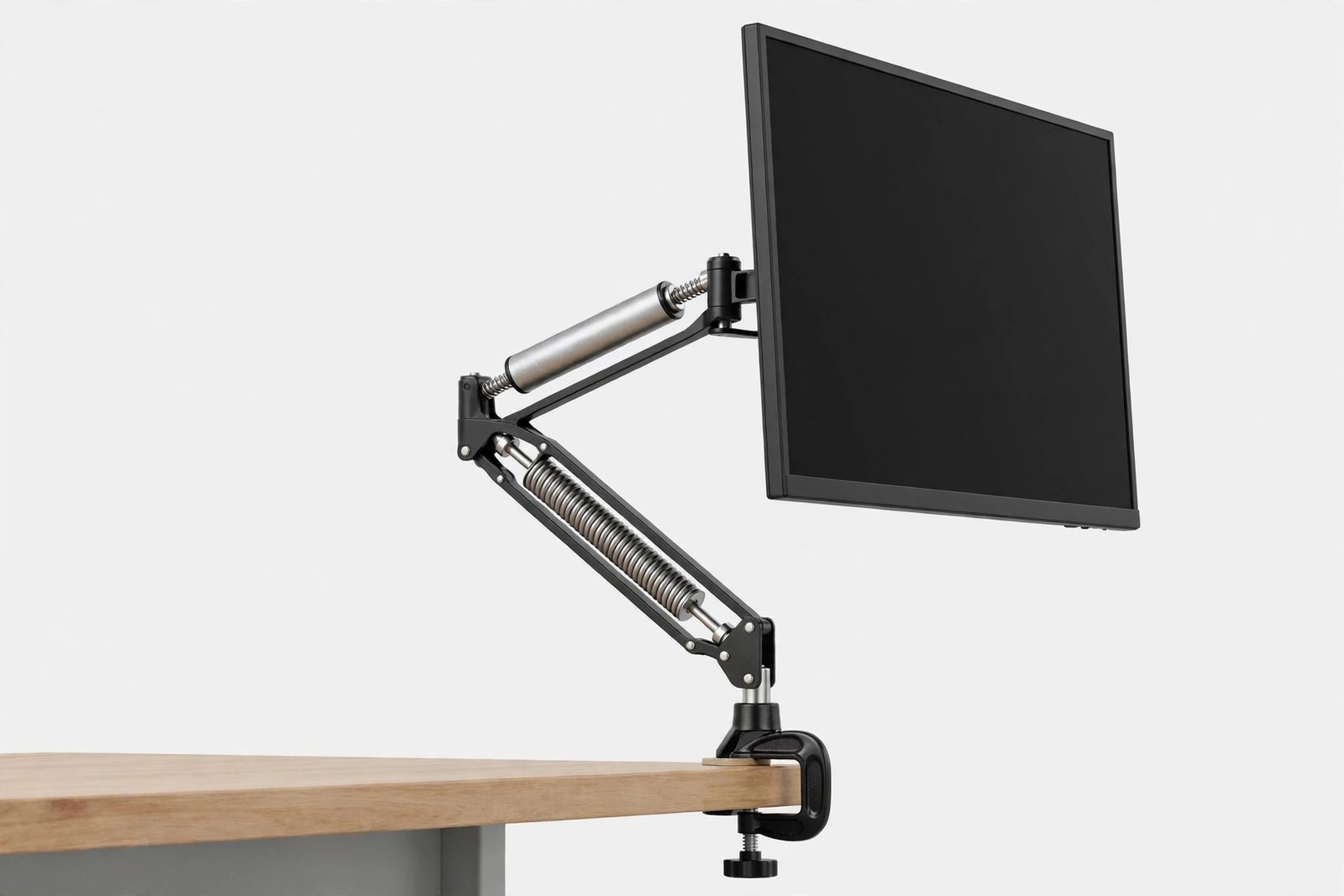
A Gas Spring Monitor Arm replaces the fixed stand your monitor came with and lets the screen float: raise it, lower it, pull it closer for a deep code review, push it back for a call, or tilt it to kill a reflection, all with one hand. That freedom matters because the correct screen position changes through the day — you sit taller in the morning and slump by four o’clock — while a fixed stand locks you into one compromise. For anyone building a serious programmer desk setup, the arm is what makes the screen fit you instead of the other way round.
It also hands you back the desk space the old stand occupied. Check three things before buying: that your monitor has a standard VESA mount (most do; some ultra-thin models need an adapter), that the arm’s weight range covers your screen — a mismatched gas spring will drift — and that your desk edge can take the clamp. Dual arms exist for two-monitor setups. Setup takes about fifteen minutes, and the built-in cable channel keeps the leads tidy on the way down.
Pros
- 👍 Screen height, depth and tilt adjust with one hand.
- 👍 Frees the desk space under the monitor.
- 👍 Helps keep the screen at eye level all day, not just at 9am.
- 👍 Built-in cable channel keeps leads tidy.
Cons
- 👎 Needs a VESA-compatible monitor and a suitable desk edge.
- 👎 Weight range must match your screen or the arm drifts.
- 👎 Costs more than leaving the stock stand in place.
Best for: single or dual monitor programmers, small desks, and anyone whose screen never quite sits at the right height.
Check Price And User Reviews on Amazon
7. Desk Cable Management Kit

A Desk Cable Management Kit is the least glamorous pick in this guide and the one visitors notice first. A typical coding desk hides a dozen cables: laptop charger, dock lead, two monitor cables, keyboard, webcam, light bar, phone charger, external drive. Left alone they knot together, collect dust, pull plugs half out, and make swapping one device a five-minute dig. A kit — usually an under-desk tray for the power strip, clips for routing, and a sleeve for the runs — turns that jungle into a system you can maintain.
The payoff is practical, not cosmetic. With the power strip in a tray under the desk, you stop kicking plugs loose with your feet; with each cable clipped along one route, you can trace and replace a single lead without disturbing the rest. Start by putting the power strip in the tray, route the permanent cables through the sleeve, and use clips for the cables you unplug often. It costs very little, and it is the finishing touch that makes a coding desk setup feel deliberate rather than accidental. Renters should look for clamp-on trays and adhesive clips that avoid drilling.
Pros
- 👍 Ends the tangled cable nest under the desk.
- 👍 Keeps the power strip off the floor and away from feet.
- 👍 Makes swapping or tracing a single cable easy.
- 👍 Very low cost for a big visual and practical difference.
Cons
- 👎 Takes an hour or so to fit properly the first time.
- 👎 Adhesive clips can fail on dusty or textured surfaces.
- 👎 Needs redoing when you change your setup around.
Best for: multi-monitor and dock-based setups, tidy-minded developers, and anyone whose feet keep finding the power strip.
Check Price And User Reviews on Amazon
8. Extra Large Desk Mat

An Extra Large Desk Mat covers the whole working area of your desk in one smooth, consistent surface, so your keyboard stops sliding, your mouse glides the same way everywhere, and the desk itself is protected from coffee rings, pen marks and laptop wear. It sounds cosmetic, but developers notice the difference quickly: a stable keyboard, even mouse tracking, and a soft edge where your wrists rest instead of a hard desk lip. It is one of those coding desk accessories that makes the whole setup feel calmer and more deliberate.
Materials are the main choice: cloth feels soft and grips the keyboard, leather-look wipes clean and looks smarter on calls, and cork is a warm, grippy middle ground. Measure your desk before ordering — a mat that hangs over the edge or leaves the mouse half off defeats the purpose. A little thickness cushions the wrists; a very thick mat can tilt a keyboard. The mat also quietly defines your workspace, which matters when the desk is also the dining table: roll it up and work is put away.
Pros
- 👍 One smooth surface for keyboard and mouse.
- 👍 Stops the keyboard sliding and softens the desk edge.
- 👍 Protects the desk from scratches, pens and coffee.
- 👍 Defines a work zone you can roll away at night.
Cons
- 👎 Must be sized to your desk or it feels wrong.
- 👎 Cloth versions stain more easily than leather-look ones.
- 👎 Very thick mats can tilt a keyboard slightly.
Best for: programmers with hard or worn desks, shared dining-table workspaces, and anyone who wants the setup to feel finished.
Check Price And User Reviews on Amazon
9. HD Webcam with Microphone
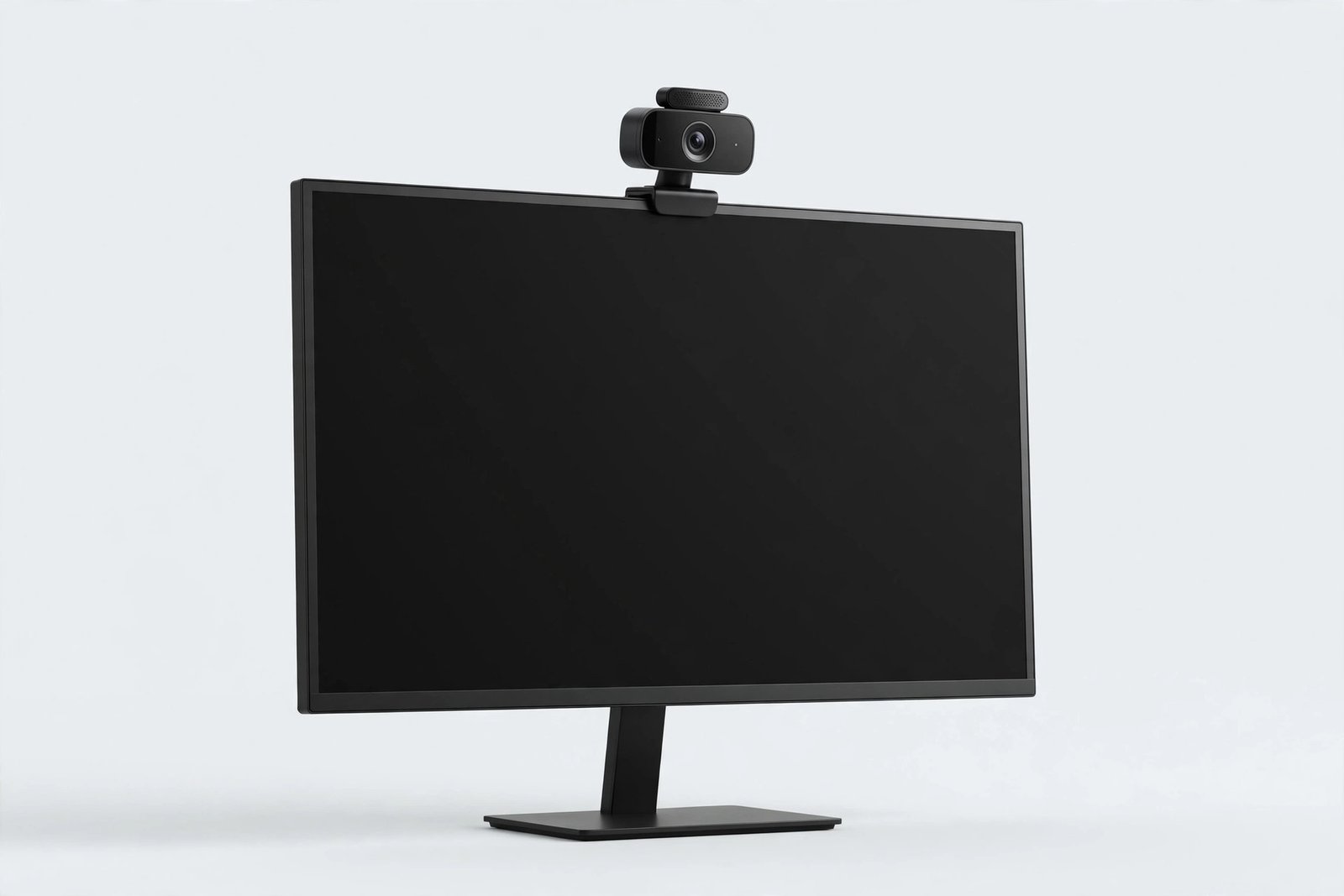
An HD Webcam with Microphone fixes the weakest part of most laptop-based setups: the camera. Laptop webcams sit low, point up your nose, and turn you into a grainy silhouette the moment the room light is less than perfect — and remote programmers spend enough of the week on stand-ups, pairing sessions and code reviews for that to matter. A proper 1080p webcam sits at eye level on the monitor, handles ordinary room light far better, and its microphone picks your voice up clearly without a headset. Among work from home desk essentials, this is the one your colleagues notice most.
Look for honest 1080p resolution, autofocus that does not hunt while you move, and a field of view that frames you without showing the whole room. A physical privacy shutter is worth having, and low-light correction matters more than headline megapixels, because home offices are rarely bright. Paired with the monitor light bar above, it gives you a simple, flattering call setup: light on the desk, camera at eye level, voice clear.
Pros
- 👍 Eye-level, sharper picture than any laptop camera.
- 👍 Better low-light handling for ordinary home rooms.
- 👍 Built-in microphone is clear enough for daily calls.
- 👍 Privacy shutter on many models.
Cons
- 👎 Built-in mics still lose to a dedicated headset or desk mic.
- 👎 Wide-angle models can show more of the room than you want.
- 👎 Another USB device competing for dock ports.
Best for: remote programmers in daily stand-ups and reviews, and anyone whose laptop camera makes them look tired on every call.
Check Price And User Reviews on Amazon
10. Adjustable Ergonomic Footrest

An Adjustable Ergonomic Footrest solves the problem nobody sees: what your feet are doing. If your chair is set high enough for your arms to meet the desk comfortably, your feet may dangle or rest on their toes, which pulls on your lower back and encourages you to perch and slump through the day. A footrest gives your feet a firm, slightly angled platform at the right height, anchoring your whole posture — hips back in the chair, back supported, shoulders down. Developers who have chased back comfort through chairs and cushions are often surprised that this small, cheap addition finishes the job.
Adjustability is the feature that matters: several height settings and a tilting platform let you match it to your chair and leg length, and a textured surface gives restless feet something to do during long compiles. A non-slip base stops it wandering, and it should be wide enough for both feet. It is not a substitute for standing and walking around, but as part of a complete programmer desk setup it makes eight hours of sitting feel noticeably less punishing.
Pros
- 👍 Supports feet properly so the whole sitting posture improves.
- 👍 Adjustable height and tilt suit any chair and leg length.
- 👍 Eases lower back strain caused by dangling feet.
- 👍 Inexpensive compared with chairs and cushions.
Cons
- 👎 Less needed if your feet already rest flat at your chair height.
- 👎 Lightweight models can slide on smooth floors.
- 👎 Does not replace standing and moving regularly.
Best for: shorter programmers, high-chair setups, and anyone whose lower back aches despite a decent chair.
Check Price And User Reviews on Amazon
11. Surge Protector Power Strip with USB Ports
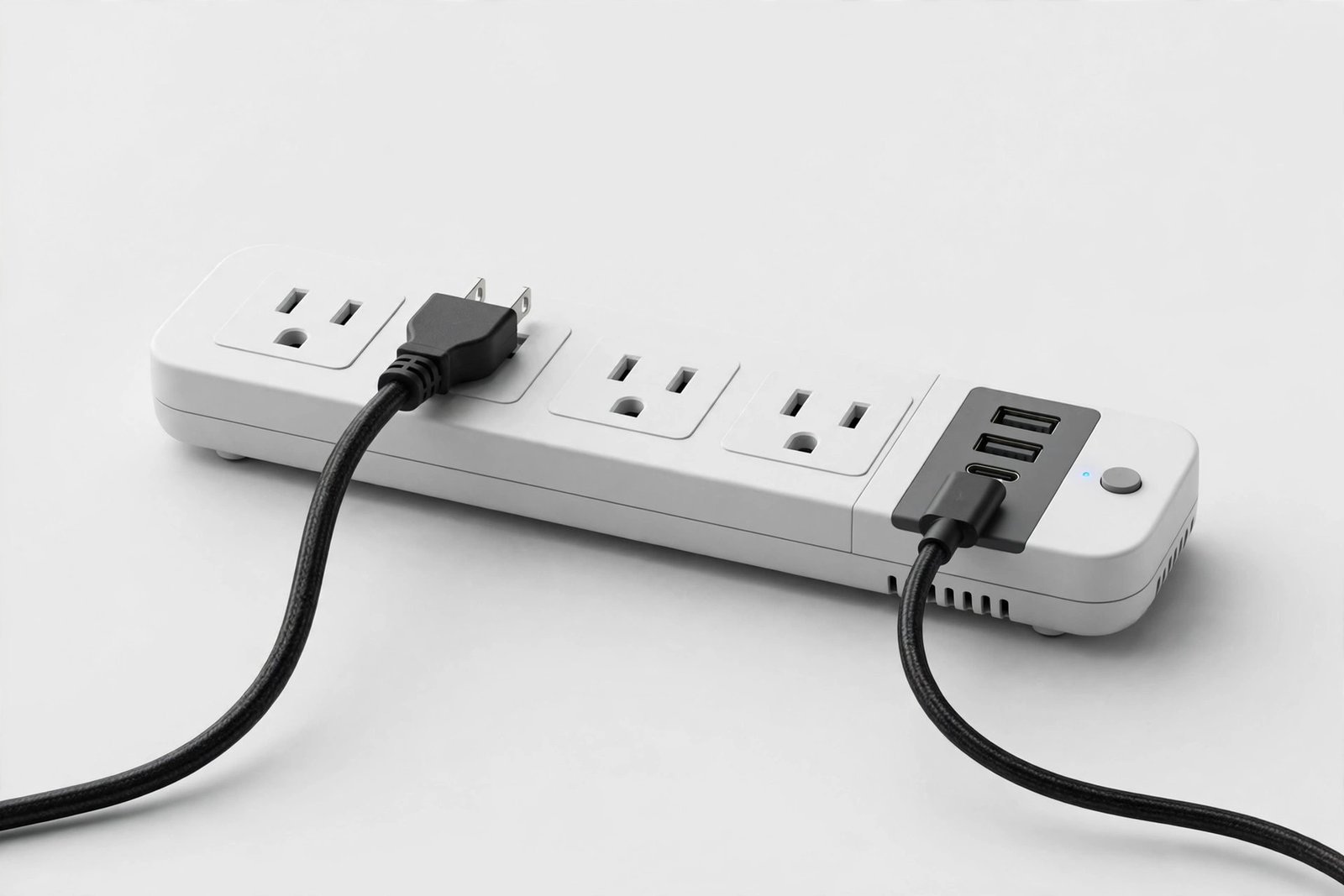
A Surge Protector Power Strip with USB Ports is the foundation the rest of this guide quietly depends on. Count the plugs behind a coding desk — laptop charger, two monitors, dock, light bar, phone charger — and most home setups run them all on a cheap strip with no surge protection at all, leaving a work laptop and good monitors exposed to spikes from storms and unreliable wiring. A proper surge protector absorbs those spikes, and built-in USB ports charge phones and headphones without competing for adapters. It is the least exciting of these home office gadgets for developers and arguably the most responsible.
Check the surge rating (in joules — higher means more protection), socket spacing so large charger bricks do not block their neighbours, and cord length: a longer cord lets the strip live in the under-desk tray from the cable kit above, with one tidy lead to the wall. A master on-off switch kills every standby light at night with one press. Replace surge protectors every few years or after a major surge event — the protection wears out silently — and never daisy-chain one strip into another.
Pros
- 👍 Protects your laptop, monitors and dock from power spikes.
- 👍 Built-in USB ports charge phones and headphones without adapters.
- 👍 Wide socket spacing fits bulky charger bricks.
- 👍 One switch powers the whole desk down at night.
Cons
- 👎 Surge protection wears out and needs replacing over time.
- 👎 Must never be daisy-chained with another strip.
- 👎 Cheap no-name strips may overstate their protection rating.
Best for: every home coding desk, especially setups running expensive laptops and monitors from one wall socket.
Check Price And User Reviews on Amazon
12. Desk Headphone Stand
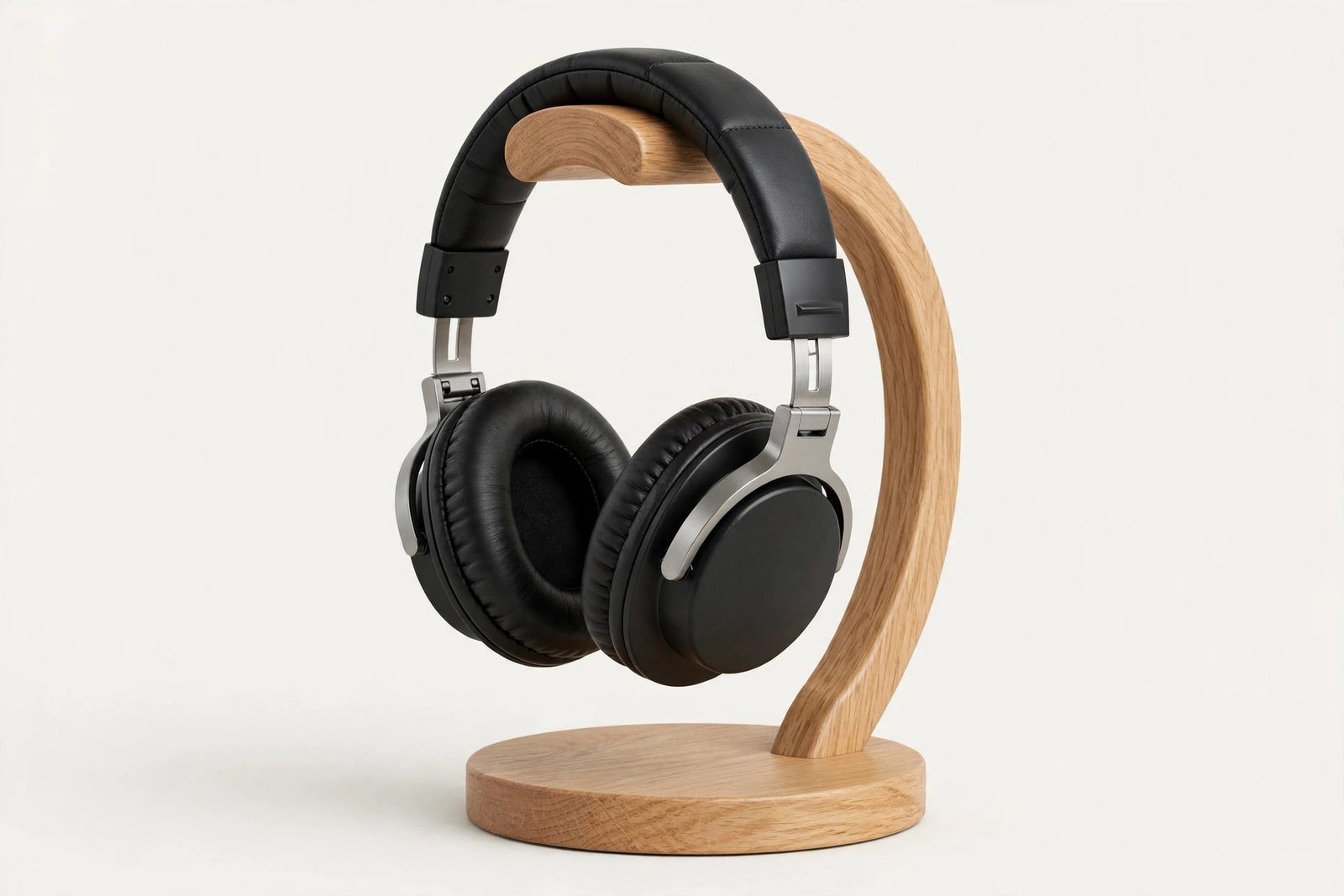
A Desk Headphone Stand gives the headphones you practically live in a proper home. Most programmers wear over-ear headphones for hours a day — for focus music, for isolation from the rest of the house, and for calls — and between sessions they end up draped over the monitor or slowly flattening one ear cup on the desk. A stand keeps them upright, aired out, off the working surface, and in exactly the same place every time you reach for them: a small but real piece of daily order in a busy coding desk setup.
The details worth checking are stability and shape: a weighted base so it does not tip when you grab the headphones one-handed, a curved or padded rest that does not dent the headband, and enough height for larger over-ear models. Some stands add USB charging for wireless headphones, which is handy if yours are always dying mid-call; if desk space is tight, an under-desk hook achieves the same result out of sight.
Pros
- 👍 Keeps headphones safe, aired and always in the same place.
- 👍 Frees desk surface and stops ear cups being flattened.
- 👍 Weighted models stay put when grabbed one-handed.
- 👍 Some models add USB charging for wireless headphones.
Cons
- 👎 Takes a small footprint of desk space itself.
- 👎 Cheap lightweight stands can tip over.
- 👎 Purely organisational — no effect on your work itself.
Best for: programmers who wear headphones all day, tidy desks, and anyone whose headphones currently live on top of the monitor.
Check Price And User Reviews on Amazon
Buying Guide
1. Fix Your Posture First: Screens, Chair Height, Then Input Devices
If you are upgrading in stages, spend in the order your body notices. Start with screen height: a laptop stand or a monitor arm puts the display at eye level, which corrects your neck and shoulders more than any other single change. Then support your feet with a footrest if they do not rest flat. Only then upgrade the keyboard and mouse, which cannot rescue a bad sitting position on their own. Lighting comes next — a monitor light bar removes the eye strain of a dim room — and the dock, cables and power layer last, because they improve convenience rather than comfort. This order builds a programmer desk setup that feels better at every step.
2. Check Compatibility Before You Buy Anything With a Cable
Developer setups fail on compatibility more than on quality. Before buying a docking station, confirm your laptop’s USB-C port supports video output and charging, and check how many external monitors your specific machine can drive from one cable — some laptops limit this to one display regardless of the dock. Before a monitor arm, confirm your screen has a VESA mount and falls inside the arm’s weight range. Before a light bar, check the clamp against your monitor’s bezel, especially on curved screens. And count your USB devices honestly — they add up faster than the ports on most docks, so leave a spare or two. Five minutes with your laptop’s specification page prevents the most common returns in this category.
3. Buy Once for the Gear You Touch All Day
Some of these work from home desk essentials are worth buying well, because you interact with them thousands of times: the keyboard, the mouse, the monitor arm and the dock. A cheap keyboard with mushy switches and a cheap dock that drops a monitor connection mid-call will annoy you every single day, while a good one disappears into the background for years. The reverse is true at the other end of the list: a desk mat, a footrest, a cable kit and a headphone stand are simple objects, and the sensible mid-range version does the job as well as the premium one. Split your budget accordingly: most of it on the items you touch constantly, the rest spread thinly across the simple fixes.
4. Keep It Adjustable, Because Your Setup Will Change
Home working arrangements are not permanent: laptops get replaced, a second monitor appears, the desk moves to another room, a gaming PC joins the work machine. Adjustable gear survives those changes. A height-adjustable stand fits the next laptop, a gas spring arm fits the next monitor within its weight range, a dock with a spare port or two absorbs the next peripheral, and a cable kit can be re-routed in an hour. Fixed, single-purpose accessories are the ones that end up in a drawer. When two products look equal, choose the one that adjusts, folds, or expands.
Conclusion
The best desk gadgets for programmers who work from home are not the flashiest ones, but the ones that remove a small friction you feel every day: the screen that sits too low, the keyboard that tires your fingers, the five cables you plug in every morning, the dim room that strains your eyes by six o’clock. If you buy only three things from this guide, make them a laptop stand or monitor arm for your posture, an ergonomic keyboard your hands can live with, and a USB-C dock that turns your desk into a one-cable workstation. Those three cover how you sit, how you type, and how you connect — the skeleton of every coding desk setup.
Add the rest in the order that matches your own annoyances: a light bar if you code at night, the cable kit and surge protector when the under-desk jungle starts biting, the webcam before the next round of important calls, and the mat, footrest and headphone stand to finish the job. Build it in stages, keep everything adjustable, and your home desk will quietly become the most comfortable place you have ever written code.
More Guides You’ll Like
If you are upgrading your whole home workspace, these guides pair naturally with the picks above. Start with our full roundup of the best gadgets for office daily use. If your desk lives in a rented flat, our guide to the best no drill smart home gadgets for renters is full of upgrades you can fit without upsetting a landlord, and if you have just moved into a place of your own, the best gadgets for new homeowners on a budget covers the rest of the home. And for keeping a laptop alive away from the desk, our guide to portable chargers for phones, laptops and travel covers power banks that can top up a work machine on the move.
Coming soon in this series: if your back complains louder than your wrists, watch out for our upcoming guide to the best gadgets for desk workers with back pain, which goes deeper on chairs, cushions and standing options.
FAQs
What is the most important desk gadget for a programmer working from home?
For most developers, it is the thing that fixes screen height: a laptop stand if you work from a laptop, or a monitor arm if you have an external display. Sitting with the screen at eye level corrects your neck, shoulders and back in one move. After that, an ergonomic keyboard and a USB-C docking station are the next most valuable additions to a programmer desk setup.
Is a monitor light bar better than a desk lamp for coding?
For a coding desk, usually yes. A light bar shines on the desk only, so it adds no glare or reflections to your screen, and it takes up no desk space — two things a normal lamp cannot do. A desk lamp is still better if you need light across a wide area, for paper documents or a large desk.
Are mechanical keyboards worth it for programming?
For most programmers, yes. The tactile feedback of mechanical switches makes typing feel more precise and less tiring over long sessions, the boards last far longer than membrane keyboards, and ergonomic models add a healthier hand position. The main cautions are noise — choose quiet switches if you share a room — and the adjustment period on split layouts. As coding desk accessories go, it is the upgrade your hands notice most.
What should I look for in a USB-C docking station?
Check four things: that your laptop’s USB-C port supports video and charging at all, how many monitors the dock and your laptop can drive together, whether the dock’s power delivery is enough to charge your laptop under load, and whether it has the ports you actually use — including Ethernet if your Wi-Fi is unreliable. A dock is the centre of most home office gadgets for developers setups, so buy one with a spare port or two for the device you have not bought yet.
How can I reduce wrist and shoulder pain when coding all day?
Work through the chain: screen at eye level so your shoulders can drop, feet supported flat, elbows at about desk height, and then input devices that keep your hands neutral — an ergonomic keyboard with a wrist rest and a vertical or sculpted mouse. Raise your mouse sensitivity so you move it less, and take short breaks to stand every hour. If pain persists, treat it as a health question rather than a shopping one and get it checked.
What is a sensible order to build a coding desk on a budget?
Start with the cheapest posture fixes: a laptop stand and a footrest if you need one. Add a monitor light bar if you work in dim light, then save for the two purchases worth doing properly — an ergonomic keyboard and a docking station — followed by a monitor arm when you settle on your long-term screen. The desk mat, cable kit, surge protector and headphone stand are inexpensive work from home desk essentials you can add any time, and together they make the setup feel finished.



2 Comments